
Category-based notification rules
Notification rules help you stay informed about events that matter in your lab. Until now, you could mainly configure rules by device and event severity, such as Error, Alert, Warning, or Info.
With category-based notification rules, VisioNize Lab Suite gives you more precise control over the events that matter to you. You can now decide not only how severe a situation must be before a notification is sent, but also which type of situation should trigger it.
What’s new
Select notification categories
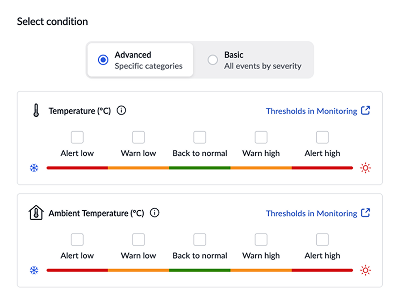
When creating or editing a notification rule, you can now choose specific categories of events in addition to the device and severity.
For example, you can create a rule for a group of incubators that notifies the responsible team about temperature-related events at Alert and Warning severity. You can exclude maintenance-related events if they aren’t relevant to that team. You can also configure a rule to notify a team when a temperature threshold is exceeded, while excluding less relevant ambient temperature changes.
To configure category-based rules:
- Create a notification rule or open an existing rule for editing.
- Go to the Conditions tab.
- Select Advanced settings.
- Choose the relevant event categories, and severity levels.
Review event categories in Monitoring
VisioNize Lab Suite also helps you understand which event categories occur on your devices. In the Monitoring section, the Event list for each device now includes the category of every event.
This makes it easier to review past events, identify recurring situations, and determine which categories should be included in your notification rules. You can use the event history to evaluate which types of incidents are typical for a device and then configure notifications accordingly.
Important information about existing rules
The introduction of category-based notification rules does not change your existing notification rules. Existing rules continue to trigger notifications as before.
To take advantage of the new category-based functionality in an existing notification rule, refine the rule by adding event categories. Simply open the rule for editing, go to Conditions, and select Advanced settings.
The benefits
- More precise notifications - Now also select the categories and parameters that should trigger alerts
- Severity control preserved - Continue to distinguish between Error, Alert, Warning, and Info events
- Better visibility into device events - Review categories directly in the Event list for each device in Monitoring
- Reduced notification noise - Avoid notifications for situations that are not relevant to your specific workflow